

We are excited to announce the availability of a new Microsoft Power BI Desktop integration with MariaDB. The MariaDB Direct Query Adapter enables Microsoft Power BI Desktop users to connect to, query, model and visualize their data without downloading the complete data set locally. The MariaDB Direct Query Adapter for Power BI supports data stored in MariaDB on prem and in the cloud on MariaDB SkySQL. The adapter is Microsoft certified and available as a menu option from within Power BI.
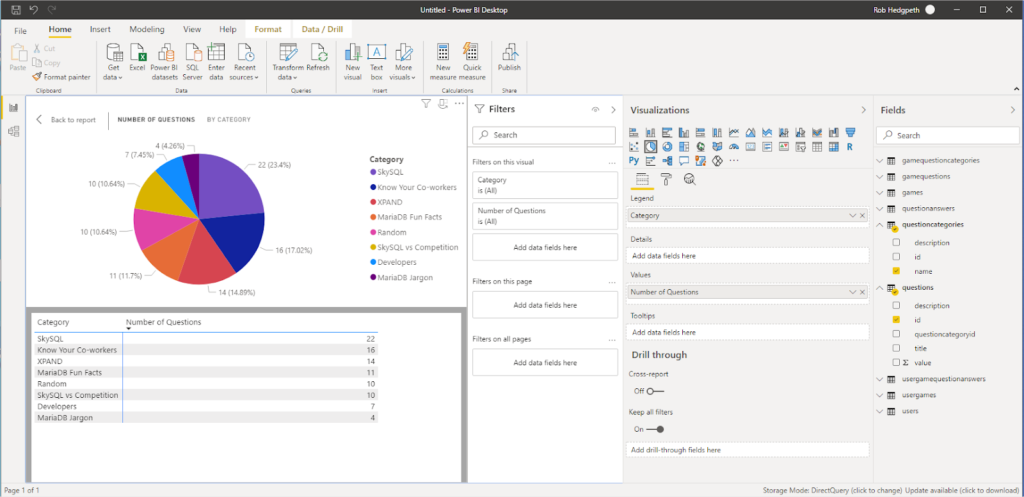
Microsoft Power BI is a popular data visualization and BI tool with a global user base. Power BI lets analysts connect to multiple sources of data, such as MariaDB, and create data models and shareable visual representations such as charts and graphs.
Extending Your Capabilities
The MariaDB Direct Query Adapter lets Power BI users leverage the MariaDB database layer directly to handle operations, increasing query performance. MariaDB Platform can be configured for standard transactions, analytics or both. The easiest way to experience the power and versatility of MariaDB is through SkySQL. In the case of analytics, MariaDB uses a columnar smart engine designed to handle extremely large data sets and the ad hoc queries of analytical workloads. Data is written to disk by column rather than row and is automatically partitioned. Columnar data storage is designed to deliver real time analysis on billions of rows. SkySQL analytical service is stored within object storage, which is highly scalable and cost-efficient, making it extremely appealing, especially compared to having to set up and maintain a separate data warehouse solution. MariaDB Direct Query Adapter enables Power BI users to work with remote data without the need to download it onto the local machine. Downloading analytical data sets can present challenges such as download speed and inadequate memory on a local machine, and even a powerful laptop or desktop will be outperformed by the processing power of a high end database server or MPP system. MariaDB’s Direct Query Adapter avoids these limitations and provides robust querying and data visualization from any location.Download and Install Software
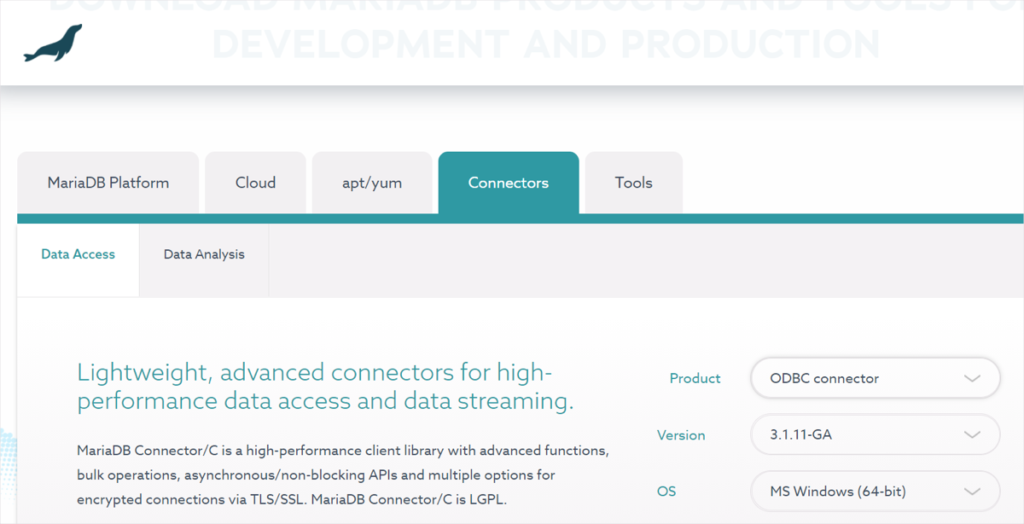
Using the MariaDB Direct Query Adapter for Power BI, requires:a. Choose MariaDB ODBC for MS Windows 64-bit and click “Download”.
b. Choose “Open” to start the MariaDB ODBC Connector 64-bit Setup Wizard and click “Next”.
c. Read and accept the terms and agreement and click “Next”.
d. Choose “Typical” for installation type and click “Install”.
e. When asked if you want to allow this app to make changes to your device, click “Yes”.
f. If you have older versions of MariaDB ODBC Connector 64-bit, select “Make User DSN’s for older Connector version to use this version” and click “Finish”. Otherwise, just click “Finish”.
2. Download Microsoft Power BI Desktop using the Microsoft instructions.Connect to Power BI Desktop
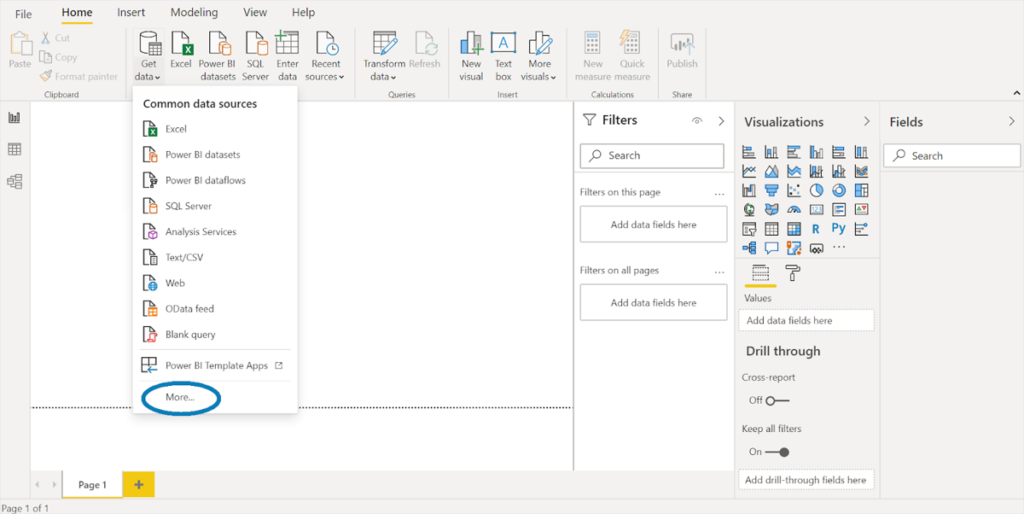
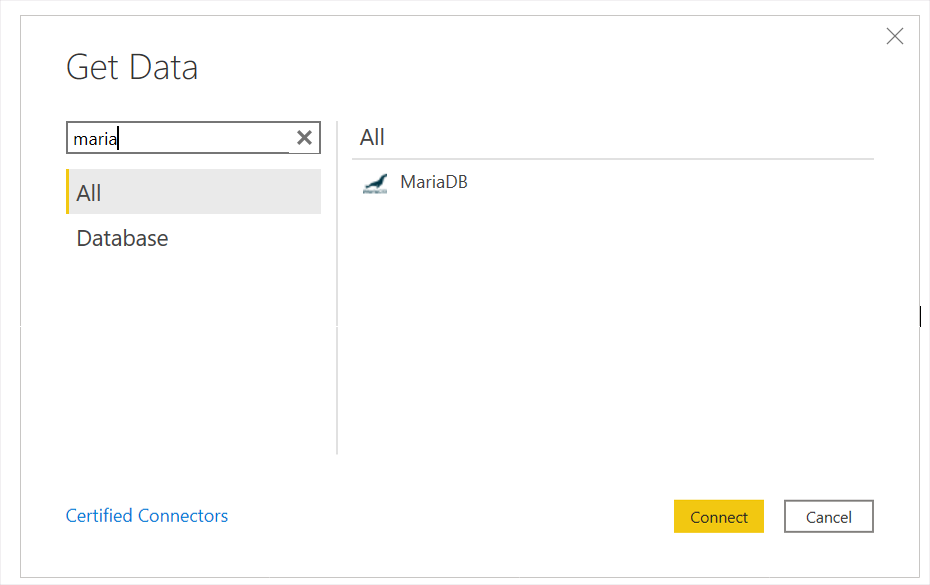
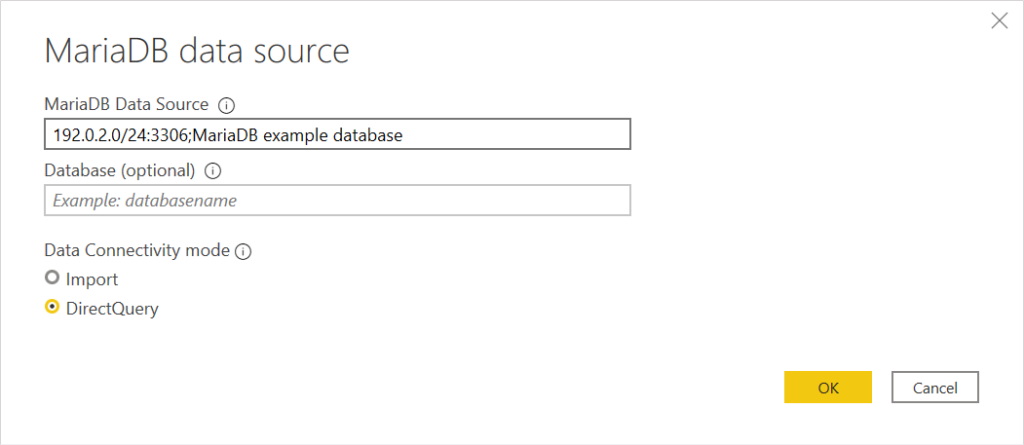
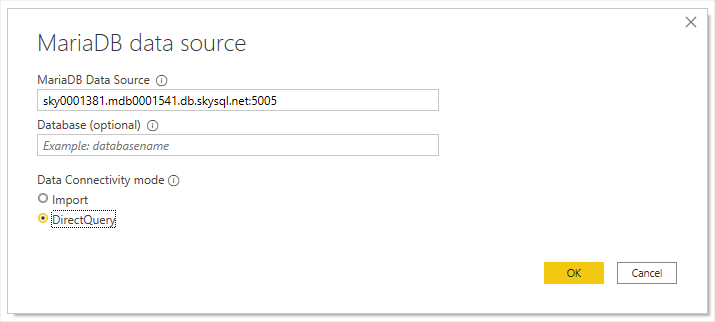
1. Open Power BI Desktop and choose “Get Data” and then “More”.servername:portnumber;databasename.