

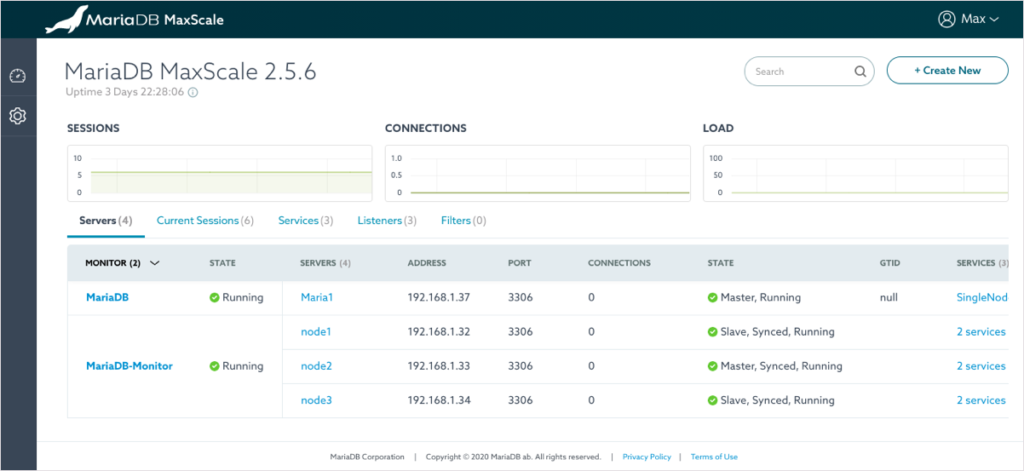
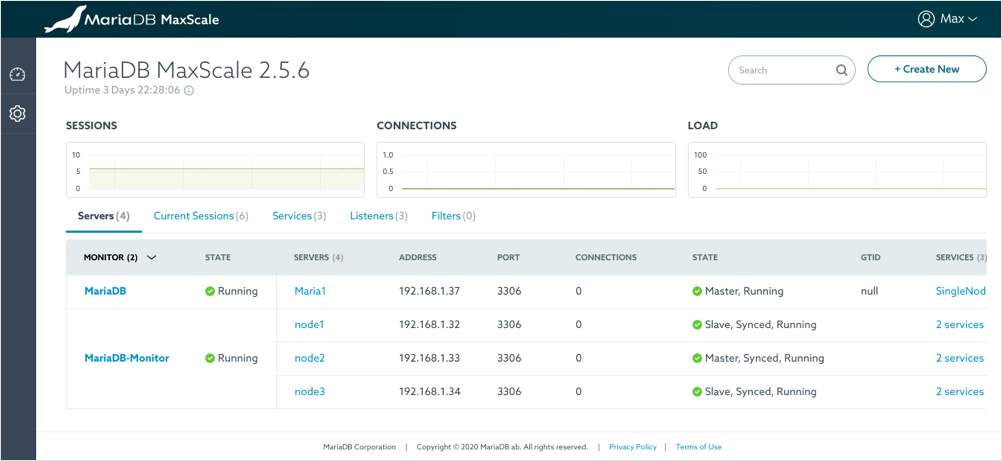
MariaDB MaxScale is an advanced database proxy and a core component of MariaDB Platform – powering its enterprise high availability, scalability, security and integration services. MariaDB MaxScale 2.5 delivers many new features, including MaxScale GUI, a graphic user interface for managing MaxScale. The MaxScale GUI provides an alternative to using the MaxCtrl command-line utility or directly editing the config file and makes live and dynamic changes to MaxScale in-flight accessible in more operating environments than before.
This blog walks you through installing and configuring the MaxScale GUI.

Install MariaDB Enterprise Server and MaxScale
Because installations vary, I haven’t included full instructions here. See the MariaDB Enterprise documentation for complete installation instructions: The short version is: Install MariaDB Enterprise Server Install MariaDB Enterprise Server and MariaDB Enterprise Backup:sudo apt install mariadb-server mariadb-backupInstall MariaDB MaxScale Check the version of MaxScale in the repository files (ensure version 2.5):
vim /etc/apt/sources.list.d/mariadb.listInstall MaxScale:
sudo apt install maxscaleCreate MaxScale Users Use the
mariadb command line to create a MaxScale user and grant that user the necessary privileges. If you are using MariaDB Replication, a “replication” user is also required. The replication user is not required with Galera cluster configurations.
mariadb
CREATE USER 'maxscale'@'%' IDENTIFIED BY 'PASSWORD';
GRANT SHOW DATABASES, BINLOG ADMIN, READ ONLY ADMIN, RELOAD,
REPLICATION MASTER ADMIN, REPLICATION SLAVE ADMIN,
REPLICATION SLAVE, SLAVE MONITOR ON *.* TO 'maxscale'@'%';
For the replication user:
mariadb
CREATE USER 'replication'@'%' IDENTIFIED BY 'PASSWORD';
GRANT REPLICATION MASTER ADMIN, REPLICATION SLAVE ADMIN,
REPLICATION SLAVE, SLAVE MONITOR ON *.* TO 'replication'@'%';
Configure MaxScale
I want to focus on how to set up MariaDB MaxScale to use the MariaDB MaxScale GUI. This configuration will enable the MaxScale GUI and then the GUI can be used for further configuration. /etc/maxscale.cnf[maxscale] threads=auto admin_host = 0.0.0.0 admin_port = 8989 admin_ssl_key=/etc/certs/server-key.pem admin_ssl_cert=/etc/certs/server-cert.pem admin_ssl_ca_cert=/etc/certs/ca-cert.pem [server1] type=server address=127.0.0.1 port=3306 protocol=MariaDBBackend [MariaDB-Monitor] type=monitor module=mariadbmon servers=server1 user=maxscale password=PASSWORD monitor_interval=2000 [Read-Only-Service] type=service router=readconnroute servers=server1 user=maxscale password=PASSWORD router_options=slave [Read-Write-Service] type=service router=readwritesplit servers=server1 user=maxscale password=PASSWORDRestart MaxScale to apply the new configuration:
systemctl start maxscale
Create Self Signed Certificate for MaxScale Rest API
1. Create certificate and keys of Certification Authority:mkdir /etc/certs cd /etc/certs/ openssl genrsa 2048 > ca-key.pem openssl req -new -x509 -nodes -days 365000 -key ca-key.pem -out ca-cert.pem CN=ca.example.com2. Create MaxScale certificate:
openssl req -newkey rsa:2048 -nodes -days 365000
-keyout server-key.pem    -out server-req.pem
CN=maxscale1.example.comserver124.labs.mydomain.com
openssl x509 -req -days 365000 -set_serial 01 -in server-req.pem
-out server-cert.pem -CA ca-cert.pem -CAkey ca-key.pem
3. Create client certificates:
openssl req -newkey rsa:2048 -nodes -days 365000
-keyout client-key.pem    -out client-req.pem
CN=client.examplewp.mariadb.com
openssl x509 -req -days 365000 -set_serial 01
-in client-req.pem    -out client-cert.pem    -CA ca-cert.pem    -CAkey ca-key.pem
4. Verify produced certificates:
openssl verify -CAfile ca-cert.pem    ca-cert.pem    server-cert.pem
openssl verify -CAfile ca-cert.pem    ca-cert.pem    client-cert.pem
5. Use and apply the new certificates:
chmod +r server-key.pem
systemctl restart maxscale
Create MaxGUI Admin User
Create a user account to access MaxGUI.maxctrl --secure --hosts=maxscale1.example.comserver124.labs.mydomain.com:8989 --tls-key=/etc/certs/client-key.pem --tls-cert=/etc/certs/client-cert.pem --tls-ca-cert=/etc/certs/ca-cert.pem create user "maxscale_rest_admin" "PASSWORD" --type=admin
Check MaxCtrl Command Line
You can usemaxctrl from the command line to check that the changes you made are working.
maxctrl --secure --hosts=maxscale1.example.com:8989
--tls-key=/etc/certs/client-key.pem
--tls-cert=/etc/certs/client-cert.pem
--tls-ca-cert=/etc/certs/ca-cert.pem list servers
Access MaxScale GUI
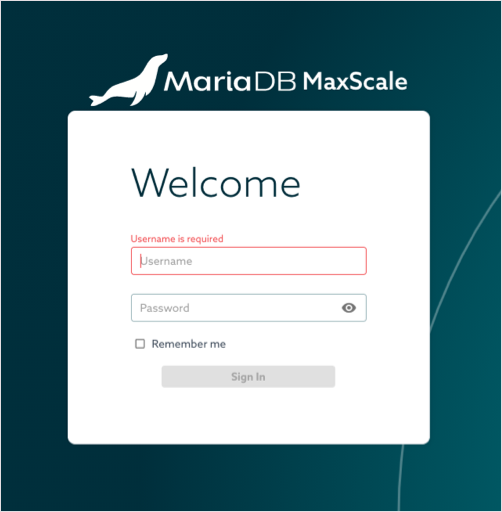
MaxScale GUI can be accessed and viewed easily with a simple web browser using an address like the following example: https://maxscale1.example.com:8989/user "maxscale_rest_admin" "PASSWORD"
Access MaxScale REST API
MaxScale Rest API can be accessed and viewed easily with a simple web browser using an address like the following example: https://maxscale1.example.com:8989/v1/servicesGraphical Management
With the MaxScale GUI configured, you have a graphical alternative to using the MaxCtrl command-line utility or directly editing the config file. The MaxScale GUI provides clear visibility and an easy-to-understand interface to make changes and perform live configuration. For example, MaxGUI allows you to dynamically add a new node to an existing cluster.For More Information
Here are some links to other information you may find helpful.- High Availability with Automatic Failover video introduction to MaxScale capabilities
- Demo: Getting the Most Out of MariaDB with MaxScale on-demand webinar with live demonstrations of MaxScale GUI
- New features in MariaDB MaxScale 2.5
- OS specific installation and upgrade instructions for MariaDB MaxScale 2.5
- Deploying MariaDB MaxScale for Cluster, Replication, ColumnStore or HTAP
- Configuring MaxScale for MaxGUI
- Configuring MaxScale’s REST API for Remote Connections
- Enabling TLS for MaxScale’s REST API
- Creating Self-Signed Certificates and Keys with OpenSSL
- Replaying Transactions with MaxScale’s Read/Write Split Router
