

Today we announced the immediate availability of MariaDB SkySQL, the first DBaaS (database-as-a-service) to unlock the full power of MariaDB Platform on an industry-leading, cloud-native architecture. SkySQL delivers the “MariaDB in the cloud” experience customers have been waiting for – fully featured, fully customizable and backed by world-class support and database expertise from the source, the engineers who built it.
MariaDB Enterprise Server, part of MariaDB Platform, is a 100% Open Source modern SQL database. MariaDB Enterprise Server 10.4 extends the capabilities of the widely-deployed MariaDB Community Server with enterprise-focused advanced features, optimized builds, and vendor support by MariaDB Corporation. SkySQL cloud database makes all the components of MariaDB Platform available as a DBaaS–eliminating the need for hardware purchases, with support from the engineers who built the database platform, and easily spun up and down as needed.
In this blog post, I’d like to show you just how easy it is to deploy SkySQL and stand up an application on it. I’ve written a lightweight workload demo app to simulate an e-commerce workload.
Rather than telling you how easy it is to connect to SkySQL, I’d like to show you. The rest of this post walks you through the process. I estimate that it takes about 20-30 minutes to have the app up and running on MariaDB SkySQL.
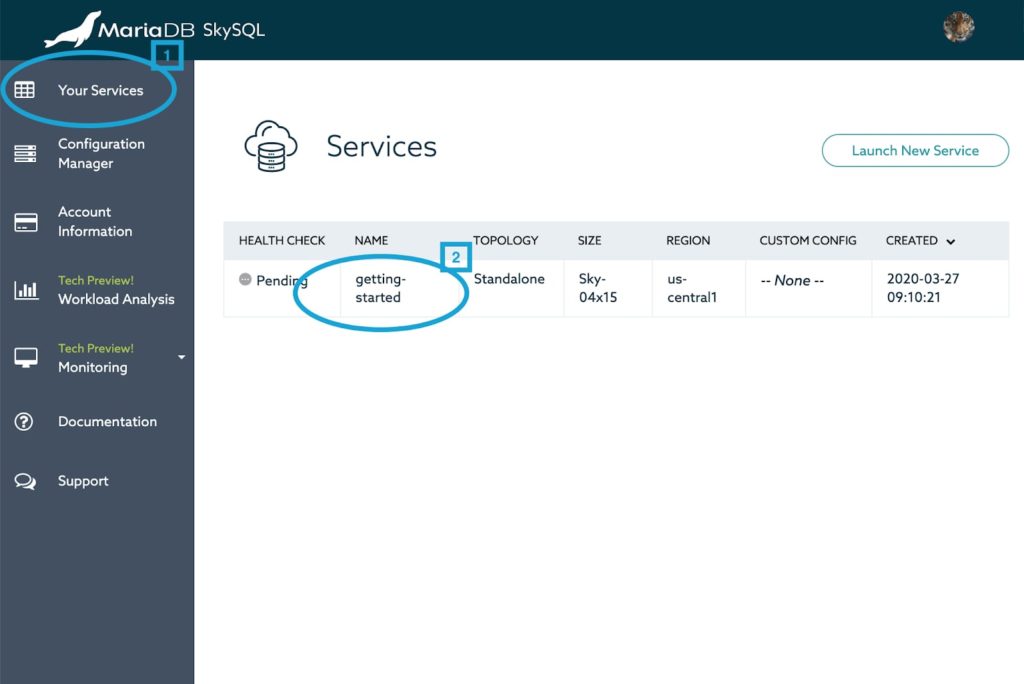 3. Check that you have your IP address whitelisted.
4. Click on the “Show Credentials” button.
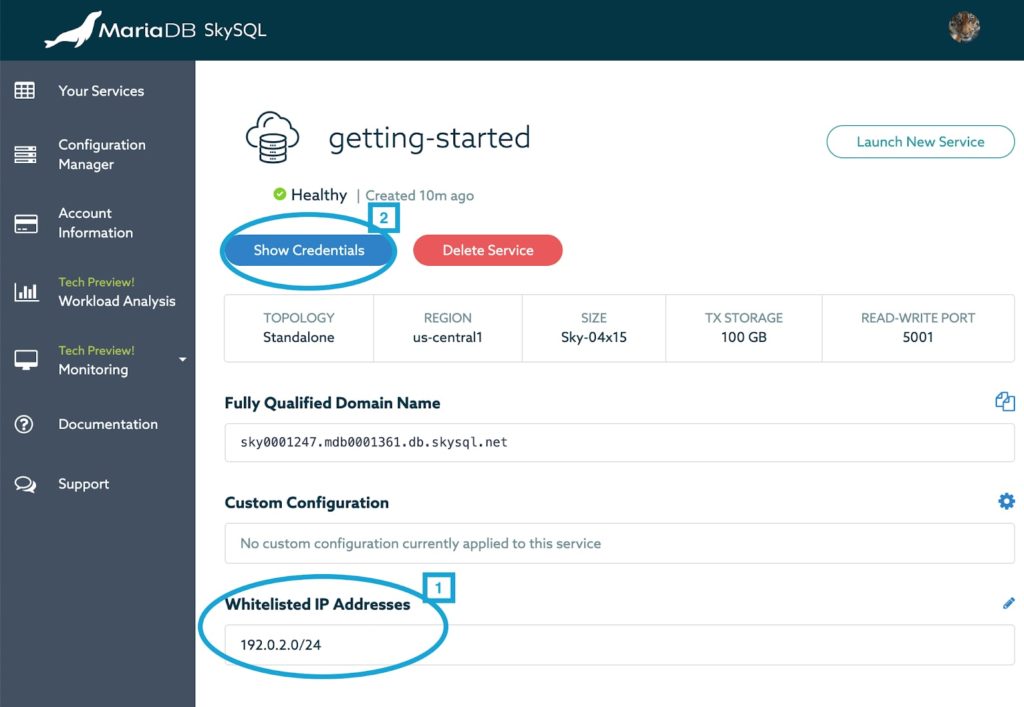 5. Click the “Download” link to download the Certificate Authority (CA).
6. Copy the information in the “Connect Using MariaDB CLI” box and paste it into a terminal window.
7. Copy and paste the password given under the “Show Credentials” when prompted for a password. (The database shown in the image below has been decommissioned; the image does not expose a live password.)
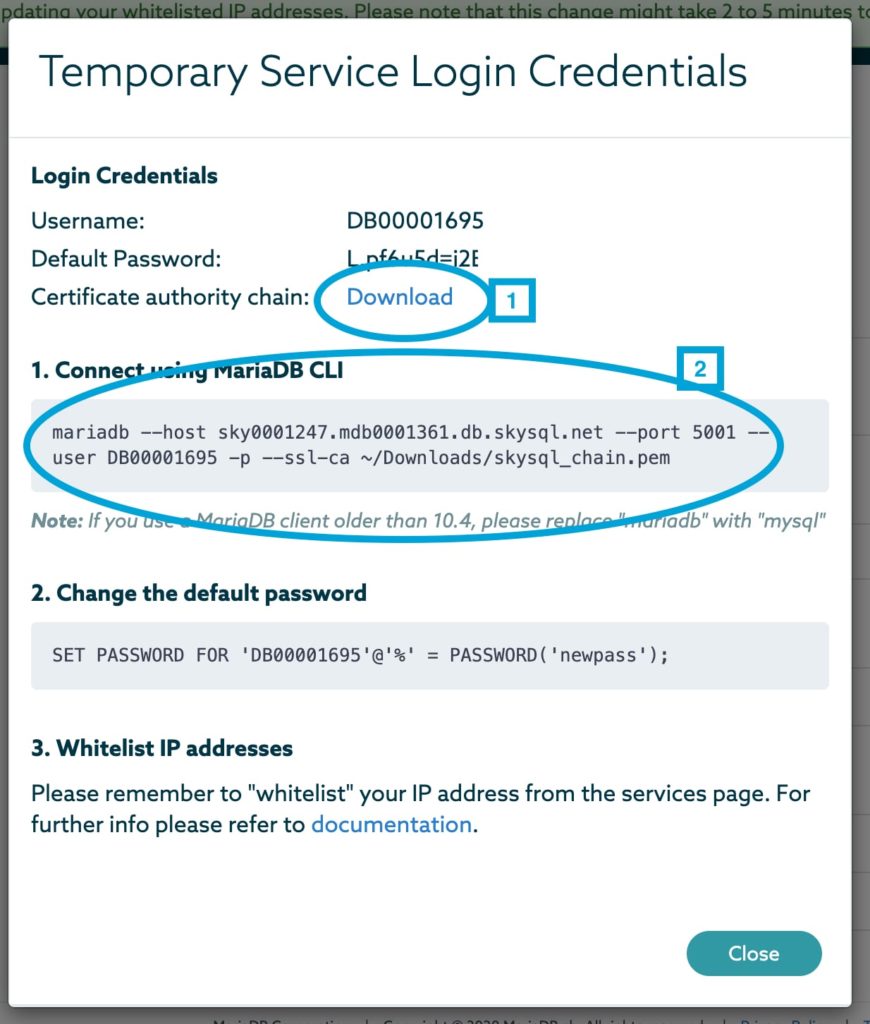 Password
Once you have connected to your database service, you can update the password with a SET PASSWORD statement as shown in the “Change the default password” box in the Credentials window. Using the PASSWORD() function hashes the password in the database. Database services on SkySQL are configured by default to validate password strength.
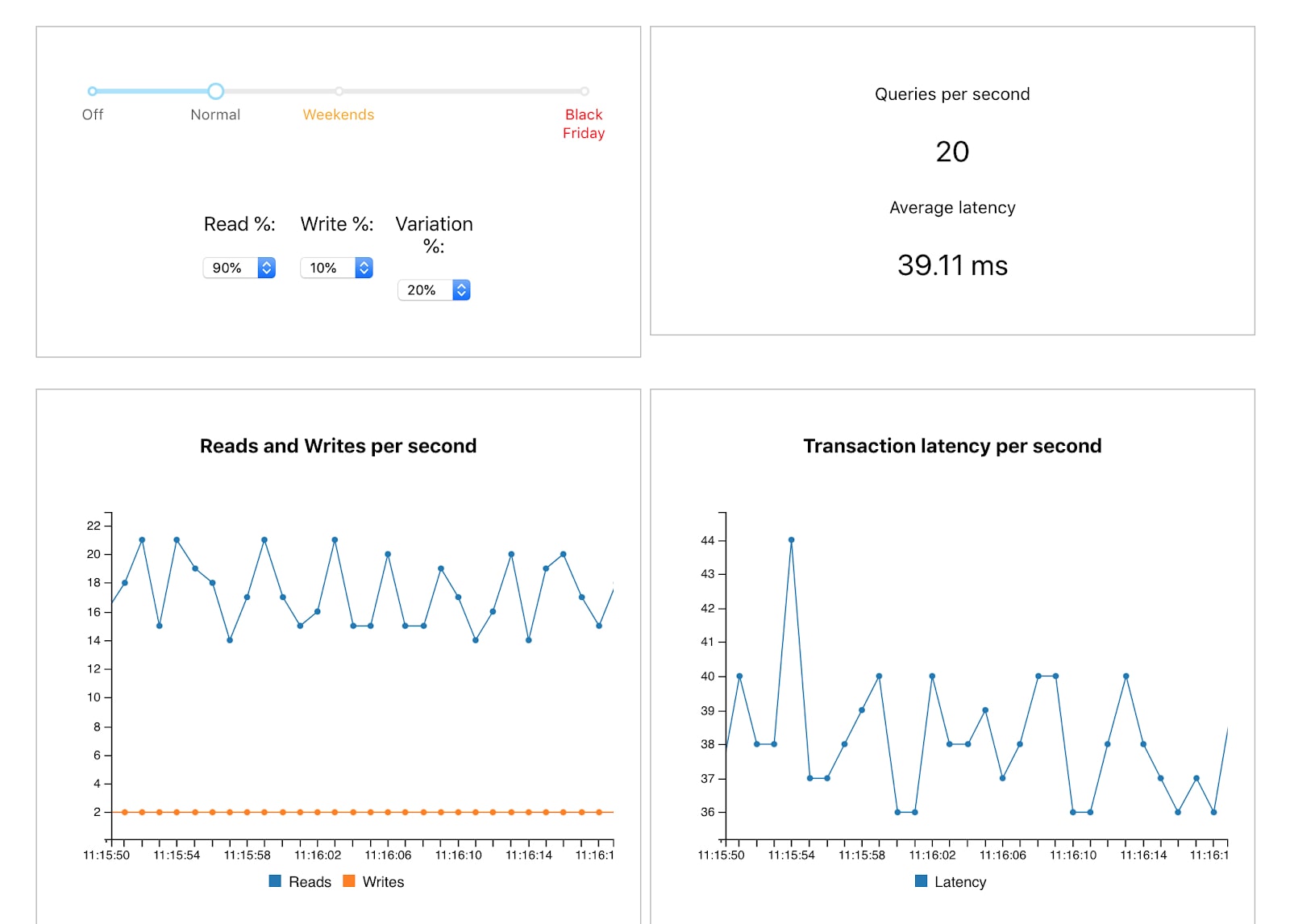 You’ll see a dynamic graphic display of the workload in your browser. The app sends queries to the database to simulate an ecommerce workload. You can change the parameters in the upper left window and see the change reflected in the other windows.
You can also see the results in the database on SkySQL by going to the terminal window running MariaDB and entering:
Getting Started Is Easy
If you have MariaDB Platform for Transactions on SkySQL already connected, skip to Create the database.Log In
- New customers can register for access. Existing customers can log in.
- When you’ve successfully submitted your billing profile information, you’ll see the “Success” screen. Click on the “Get Started” button.
Launch a Service
- From the “Start up a Service” page, click on the “Start” button under “Transactions.” For our example, we will use this configuration:
a. MariaDB Platform for Transactions
b. Standalone topology
c. Sky-04×15, the smallest instance size
d. 100 GB of transactional storage, the smallest provided
e. In a region of your choice
- While an estimated monthly cost is provided, SkySQL services have metered per-minute pricing. You only pay for what you use.
- Give the database service a name and click on the “Launch Service” button.
- Click on “Your Services” in the main SkySQL menu and click on the name of the desired database.
- Click on the pencil icon on the “Whitelisted IP Addresses” heading.
- Specify an IPv4 address or IPv4 netblock to be whitelisted, and click on the “Add” button and then click on the “Submit” button.
Connect to Your Service
Database services on SkySQL are live and able to receive connections when they have a “Healthy” status. Connecting to your service on SkySQL requires:- whitelisting the IP address (as detailed above)
- the Fully Qualified Domain Name (FQDN)
- the Certificate Authority (CA) file
- the port number (MariaDB SkySQL does not use 3306, the default client port)
- the username and password
3. Check that you have your IP address whitelisted.
4. Click on the “Show Credentials” button.
5. Click the “Download” link to download the Certificate Authority (CA).
6. Copy the information in the “Connect Using MariaDB CLI” box and paste it into a terminal window.
7. Copy and paste the password given under the “Show Credentials” when prompted for a password. (The database shown in the image below has been decommissioned; the image does not expose a live password.)
Password
Once you have connected to your database service, you can update the password with a SET PASSWORD statement as shown in the “Change the default password” box in the Credentials window. Using the PASSWORD() function hashes the password in the database. Database services on SkySQL are configured by default to validate password strength.
Create the Database
Create a simple orders database and table.CREATE DATABASE orders; USE orders; CREATE TABLE orders (description VARCHAR (25)) ENGINE= InnoDB;
Stand Up the Orders Workload App
This application has three tiers:- UI: React.js
- API: Node.js (and uses the MariaDB Node.js Connector to communicate with the back-end)
- Back-end: MariaDB Platform on SkySQL
- Download and install Node and NPM (Node Package Manager) from https://nodejs.org/en/download/ . You need node version v12.16.1. You can check for version with:
node -v
- You will also need to install
gitif you don’t have it.
Install the App
1. Clone the app. Cut and paste the following to clone the app:git clone https://github.com/mariadb-corporation/Developer-Examples.git
This creates the directory Developer-Examples
npm install uses the relative package.json files to do this).
a. Navigate to /path/to/Developer-Examples/orders/src
$ npm install
b. Navigate to /path/to/Developer-Example/orders/src/client
$ npm install3. Add connection details. We will use a
.env to hold your connection details. An .env (environment) file is used to prevent sensitive information from being pushed into source control. While it is certainly possible to put the connection values directly within the db.js file, it is not advisable to do so in practice.
Create the .env file in /path/to/Developer-Examples/orders/src:
touch .env
Open the .env with a text or code editor. Add your SkySQL connection details below and then copy and paste it into the .env file. You must customize these values to match your service.
DB_HOST_1=xxxx.mdb0001541.db.skysql.net
DB_PORT_1=5001
DB_USER_1=DB00001574
DB_PASS_1=**************
DB_NAME_1=orders
4. Move or copy the SkySQL certificate authority chain (
skysql_chain.pem) file to /path/to/Developer-Examples/orders/src
5. Once the certificate authority chain (.pem | .cer) has been added to the /path/to/Developer-Examples/orders/src directory, modify the db.js file by un-commenting lines to enable SSL.
To un-comment, remove // from the following lines:
// const fs = require("fs");
// const serverCert = [fs.readFileSync("skysql_chain.pem", "utf8")];
so they become:
const fs = require("fs");
const serverCert = [fs.readFileSync("skysql_chain.pem", "utf8")];
And remove /* and */ from the following section:
    /*
    ,ssl: {
      ca: serverCert
    }*/
so it becomes:
    ,ssl: {
      ca: serverCert
    }
6. Start the application. In /path/to/Developer-Examples/orders/src
$ npm startThis will start the application, sending traffic to your SkySQL orders database.
Results
You’ll see a dynamic graphic display of the workload in your browser. The app sends queries to the database to simulate an ecommerce workload. You can change the parameters in the upper left window and see the change reflected in the other windows.
You can also see the results in the database on SkySQL by going to the terminal window running MariaDB and entering:
SELECT COUNT(*) FROM orders.orders;

+----------+
| count(*) |
+----------+
|    2040  |
+----------+
1 row in set (0.06 sec)
