

See how easy it is to use containers to integrate BI tools with your SkySQL database. This blog was first published April 20, 2020 with instructions for Apache Zeppelin 0.8.2. We’ve refreshed it to reflect the latest version of Apache Zeppelin 0.9.0. If you need the old blog, you can find it here.
One of the key tenets of a database-as-a-service (DBaaS) is simplicity. Not only should a DBaaS be easy to set up, but it should also be easy to use. Not only easy to use, but easy to use with tools that help us visualize and conceptualize our data. In this article you’ll learn just how easy it is to integrate with MariaDB SkySQL cloud database.
If you don’t already have a SkySQL account there’s no better time than the present to sign up.
You can read through the demo and see theoretically how easy it is to integrate BI tools with your SkySQL database, but to test it out, you need a SkySQL instance, either transactional or analytical, up and running. Even an instance without data will work for our purposes. You’ll also need to have Docker installed because we are going to use it to run a Zeppelin container. (I’ll talk more about containerization later.)
 Using MariaDB SkySQL, Apache Zeppelin allows you to make beautiful, data-driven, interactive documents (notes) using SQL. In the following walkthrough we’ll focus on setting up Apache Zeppelin to integrate with MariaDB SkySQL to enable you to create dynamic visualizations using your data.
 2. On the Interpreters page, click the “+ Create” button at the top right corner of the page.
3. Give the interpreter a name, and select “jdbc” as the interpreter group*.
The default.url will look similar to the following but with your information in it:
 Name your new note, select “jdbc” as the Default Interpreter, and click the “Create” button.
 Within each paragraph you will need to reference the name of the interpreter you’ve created with the format of %<interpreter_name>. For example,
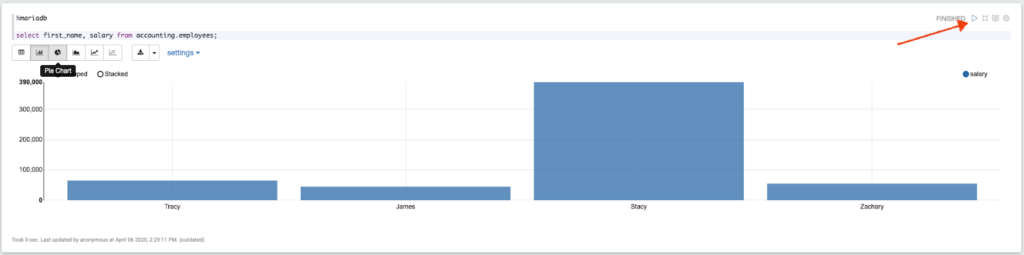
 Finally, execute the query by clicking the run (triangle) button located at the top right corner of the paragraph.
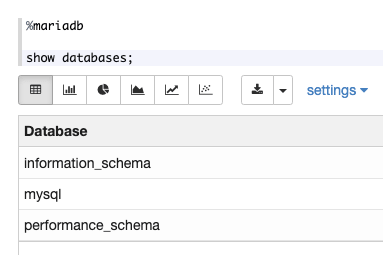
 If you are testing the setup using a SkySQL instance without a database, try a note using
 Next steps
Thanks for taking the time to read through this tutorial! If you’d like to learn more I’ve created a few other apps you can try for yourself, see: https://github.com/mariadb-corporation/Developer-Examples
SkySQL documentation is available at: https://wp.mariadb.com/products/skysql/docs/
And I would welcome your feedback on GitHub or by Twitter (@mariadb).
Apache Zeppelin
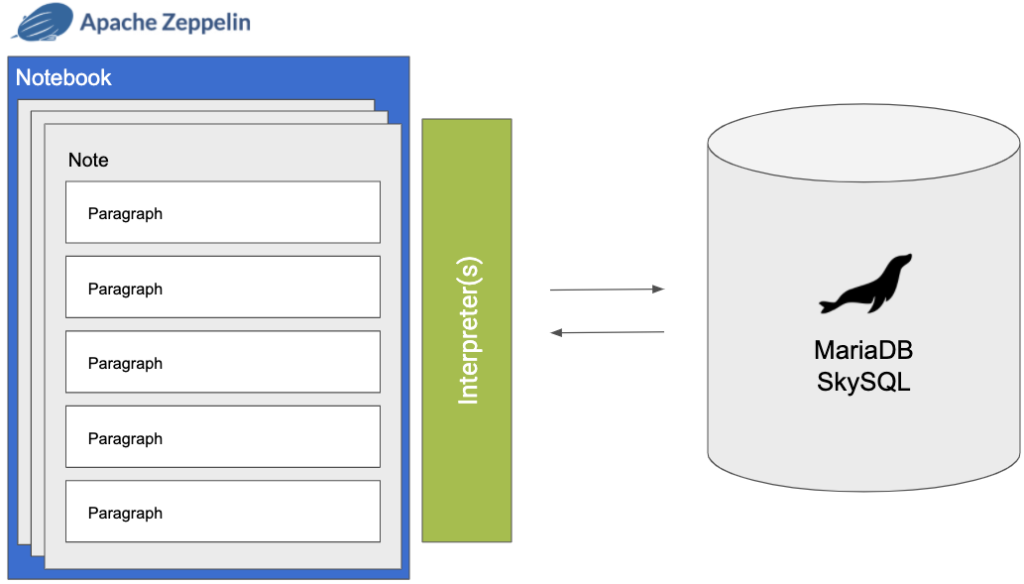
For this walkthrough you’ll be using Apache Zeppelin, an open-source, web-based “notebook” application to integrate directly with MariaDB SkySQL. Zeppelin enables you to visualize your data (row-based or column-based) using a variety of tables, graphs and charts. In Zeppelin, a notebook is simply a collection of notes, which is a collection of “paragraphs”. Each paragraph then uses an interpreter to connect to and communicate with a datasource, which in this case, as I mentioned before, is MariaDB SkySQL. Personally, I’m more of a visual learner so I think it helps conceptualize everything with the image below.
Using MariaDB SkySQL, Apache Zeppelin allows you to make beautiful, data-driven, interactive documents (notes) using SQL. In the following walkthrough we’ll focus on setting up Apache Zeppelin to integrate with MariaDB SkySQL to enable you to create dynamic visualizations using your data.
Getting Zeppelin
There are three options for installing Apache Zeppelin on your machine.- Downloading a pre-built binary package from the Zeppelin archive
- Running the official Apache Zeppelin Docker image to launch a container
- Building from source
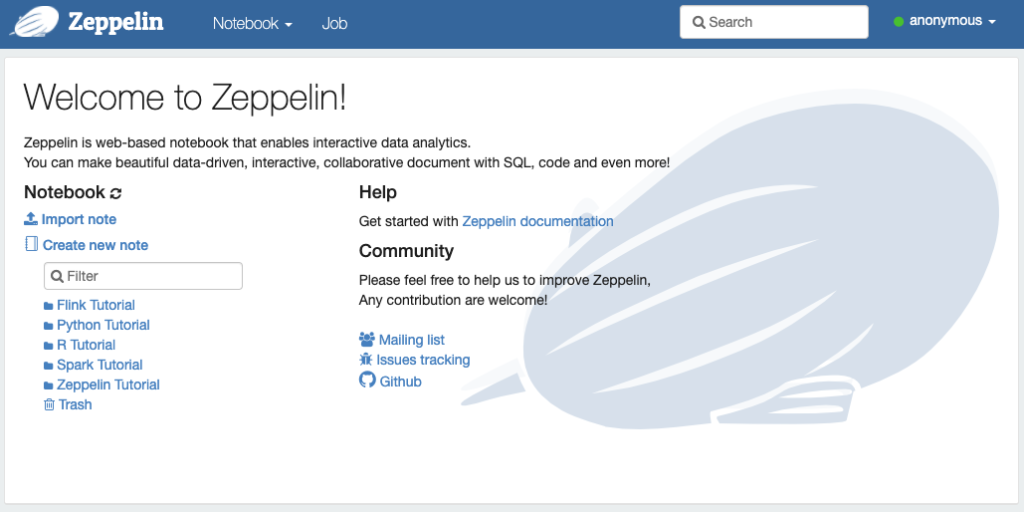
docker run -p 8080:8080 -e ZEPPELIN_ADDR=0.0.0.0 --name zeppelin apache/zeppelin:0.9.0That’s it, when the pull is complete and the container has been created, you have a local instance of Apache Zeppelin running on your machine! Now you can jump into the Zeppelin portal by opening a browser window and navigating to http://localhost:8080.
Configuring Zeppelin to use MariaDB SkySQL
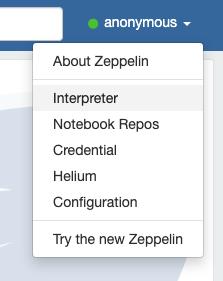
The Zeppelin portal is fairly straightforward. Using the “Notebook” menu you can create a new note. But first you’ll need to create a MariaDB interpreter. Apache Zeppelin comes with several interpreters, but MariaDB is not one of them. Luckily creating a new interpreter is very straightforward. 1. Select “Interpreter” within the (anonymous) user menu in the top right corner of the window.
2. On the Interpreters page, click the “+ Create” button at the top right corner of the page.
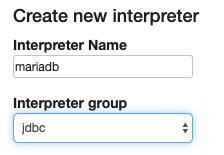
3. Give the interpreter a name, and select “jdbc” as the interpreter group*.
* The MariaDB interpreter will use MariaDB Connector/J, which adheres to the JDBC API. For more information on how creating a generic JDBC interpreter is possible in Apache Zeppelin please check out the official documentation.
4. Fill in the following properties information. For the default.url, substitute the Fully Qualified Domain Name of your SkySQL instance for skysql_domain, and substitute the port number given on your SkySQL instance for skysql_port. This information is available by clicking on the database name in the “Your Services” page in SkySQL. Your password and default user name are in Connection Details.| default.driver | org.mariadb.jdbc.Driver |
| default.password | (Your MariaDB SkySQL Password) |
| default.url | jdbc:mariadb://skysql_domain:skysql_port?useSSL=true&serverSslCert=/zeppelin/skysql/skysql_chain.pem |
| default.user | (Your MariaDB SkySQL User) |
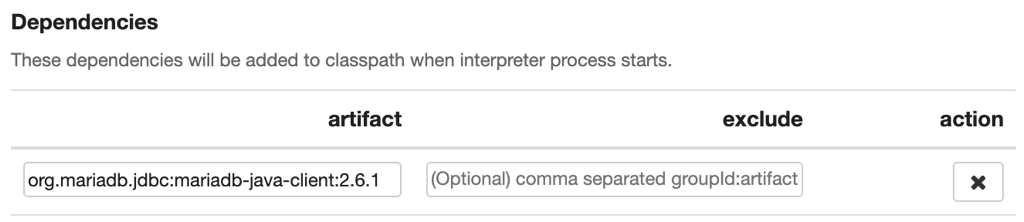
jdbc:mariadb://sky0001247.mdb0001361.db.skysql.net:5001?useSSL=true&serverSslCert=/zeppelin/skysql/skysql_chain.pem5. Add a MariaDB dependency by adding “org.mariadb.jdbc:mariadb-java-client:” followed by the target JDBC client version. Supported versions can be found here.
$ docker exec -it zeppelin bashCreate a new directory to house the MariaDB certificate authority chain.
$ mkdir skysqlDownload the certificate chain.
$ wget -O skysql/skysql_chain.pem
https://supplychain.wp.mariadb.com/skysql_chain.pem
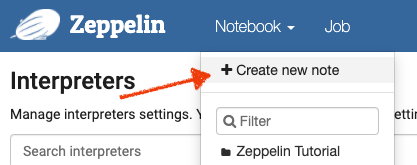
Bringing it all together Now that you have an interpreter for MariaDB SkySQL you’re ready to create a new note! Simply click “Create new note”, located within the “Notebook” menu on the top left navigation bar.
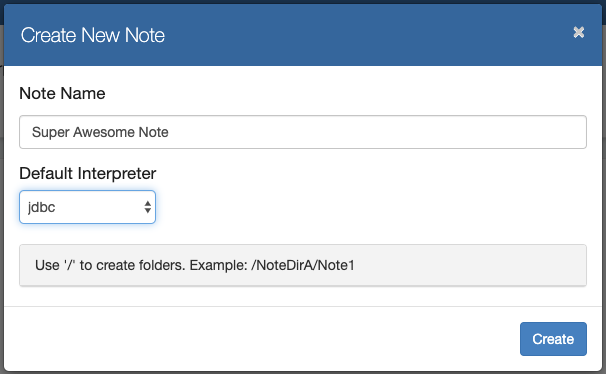
Name your new note, select “jdbc” as the Default Interpreter, and click the “Create” button.
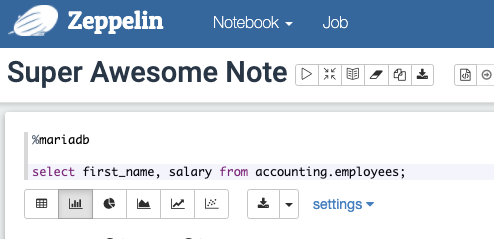
Within each paragraph you will need to reference the name of the interpreter you’ve created with the format of %<interpreter_name>. For example, %mariadb. Then supply a SQL query including fully qualified domain names (e.g. accounting.employees) for your database running on SkySQL.
Finally, execute the query by clicking the run (triangle) button located at the top right corner of the paragraph.
If you are testing the setup using a SkySQL instance without a database, try a note using SHOW databases;
Next steps
Thanks for taking the time to read through this tutorial! If you’d like to learn more I’ve created a few other apps you can try for yourself, see: https://github.com/mariadb-corporation/Developer-Examples
SkySQL documentation is available at: https://wp.mariadb.com/products/skysql/docs/
And I would welcome your feedback on GitHub or by Twitter (@mariadb).